Taxonomy migrations are one of the most disruptive changes you can make to an ecommerce store. Done without a plan, they break navigation, create 404 errors that destroy SEO rankings, invalidate channel feeds, and leave products uncategorised for days. Done correctly, they deliver a better-performing catalog with minimal disruption. The difference is preparation.
This guide covers the complete migration process — from designing the new structure through to post-launch monitoring.
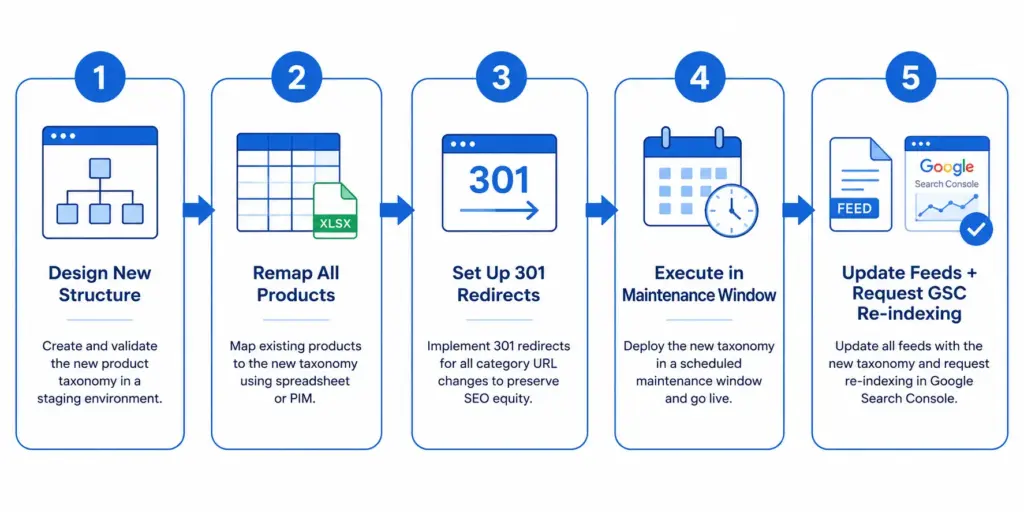
How to Migrate Product Taxonomy Without Breaking Your Store
Why Taxonomy Migrations Go Wrong
Most taxonomy migration failures share the same root causes:
- No 301 redirects — old category URLs return 404 errors. Google loses the ranking equity from those pages. Customers bookmark links break.
- Products migrated before redirects are set up — the new category pages have no content and the old pages return 404s simultaneously.
- Partial migration — some products moved to new categories, others left in old categories that no longer exist. Products become unfindable during the transition.
- Channel feeds not updated — Shopping feed still references old category URLs, causing 404 landing page errors and subsequent disapprovals.
- No post-migration monitoring — edge cases and missed redirects go undetected until they show up as ranking drops weeks later.
Phase 1: Design the New Taxonomy (Before Touching Anything Live)
The new taxonomy must be fully designed and documented before a single product is moved. This means:
- Full category hierarchy defined to Level 3 or 4 (see Product Taxonomy: What It Is, How to Build One, Examples & Template )
- Attribute sets defined per subcategory
- Google product category mapping document completed for every new subcategory
- New URL structure confirmed — category slugs for every new subcategory
Build and test the new structure in your staging environment. Confirm navigation works, filters populate correctly, and product pages display properly — all before any changes go live.
Phase 2: Build the Product Remapping Document
This is the migration source of truth. For every product in your catalog, record:
- Current category
- New category (from the new taxonomy structure)
- Any attribute values that need to change as a result of the new category assignment
This document must be 100% complete before migration begins. Any product without a destination category will be uncategorised after migration — invisible to customers and broken in your feed.
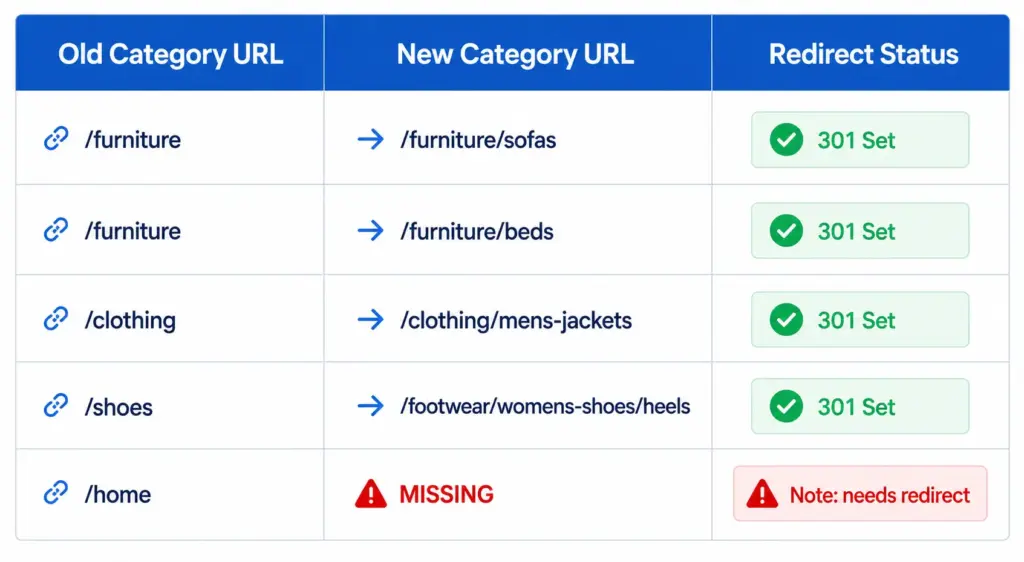
Phase 2: Build the Product Remapping Document
Phase 3: Set Up All 301 Redirects Before Go-Live
301 redirects must be in place before any category URLs change on the live site. Do not go live and then add redirects afterwards — the window between go-live and redirect setup is when Google crawls 404 errors and when customers hit broken links.
- Map every old category URL to its new URL in your redirect list
- For categories being split into multiple new subcategories, redirect the old URL to the most relevant new subcategory (or to the parent category if no single subcategory is a clear match)
- For categories being merged, redirect the old URL to the merged category
- Test every redirect in staging before going live
Phase 4: Execute During a Maintenance Window
Execute the full migration in one step during your lowest-traffic period (typically 2:00–5:00 AM). Apply all product remappings and activate all redirects simultaneously. Never migrate categories in batches across multiple days — this creates a prolonged period where some products are in old categories, some are in new categories, and the site navigation is inconsistent.
Phase 5: Update Feeds and Request Re-indexing
Immediately after migration goes live:
- Update your Google Shopping feed’s
google_product_categorymapping to reflect any new subcategory mappings - Update
product_typefield values if they referenced your old internal category names - Update
linkfield values in your feed if category URL changes affected product landing page URLs - Submit the updated feed to Google Merchant Center
- In Google Search Console, use the URL Inspection tool to request re-indexing for your most important category pages
- Submit an updated sitemap
Post-Migration Monitoring (First 30 Days)
Check these daily for the first week, then weekly for the following three weeks:
- GSC Coverage report — watch for new 404 errors. Any 404 on a page that was previously indexed needs an immediate redirect fix.
- Merchant Center Diagnostics — check for new disapprovals caused by landing page or category mapping changes
- Organic traffic by category page — expected to dip temporarily as Google re-evaluates the new structure. A dip that does not recover after 4–6 weeks signals a redirect or indexing issue.
- Site search zero-results queries — any increase post-migration suggests products have been miscategorised and are not surfacing in the right filter contexts
The PIM Readiness Score identifies where your current taxonomy and data governance has gaps before you begin a migration — it is the right starting point for understanding the scope of work involved. For the impact of taxonomy structure on your filters and site search post-migration, see Faceted Navigation and Product Taxonomy .
Next steps: Check required product fields with the Product Data Completeness Checker . Then turn mapped categories into a channel-ready output with the Google Shopping Feed Generator . When you are ready to operationalize the workflow, review LynkPIM pricing and plans or book a LynkPIM demo .
Related product taxonomy guides
- product taxonomy audit checklist : find mapping errors before they cost you sales.
- flat vs hierarchical product taxonomy : choosing a structure for your catalog.
- category mapping guide : map supplier categories to your taxonomy, then to Google, Shopify and Amazon.
- free product taxonomy template : starter structures for five industries, in Excel.
Frequently Asked Questions
Will migrating product taxonomy hurt my Google rankings?
It may cause a temporary dip of 2–4 weeks as Google recrawls and re-evaluates the new structure. With proper 301 redirects in place, most ranking equity transfers to the new URLs. Long-term, a well-structured hierarchical taxonomy almost always outperforms a poorly-structured flat one — the short-term dip is worth the long-term gain.
How long does a product taxonomy migration take?
Planning and staging takes 2–4 weeks for most mid-size catalogs (500–5,000 SKUs). The actual live migration takes hours — it is a single execution event. Post-migration monitoring and edge case cleanup typically runs for 2–4 weeks after go-live.
Do I need to update my Google Shopping feed after migrating taxonomy?
Yes. Update your google_product_category mapping for any subcategory changes, update product_type field values if they referenced old internal category naming, and update link field values if category URL changes affected product landing page URLs. Submit the updated feed to Merchant Center immediately after go-live.