Quick answer
Open Products → Needs attention in Merchant Center, group the issues by type, fix the cause in your product data source (not just the single product), then request a website check or review if Google offers one. Products with the status Not approved are not shown on Google at all, so start there. This guide covers what each common disapproval means, what Google officially says to do, and how to stop the same issues coming back.
Last checked against Google Merchant Center Help on 4 October 2026. Google changes the interface and policies regularly, so the sources are linked in each section and listed at the end.
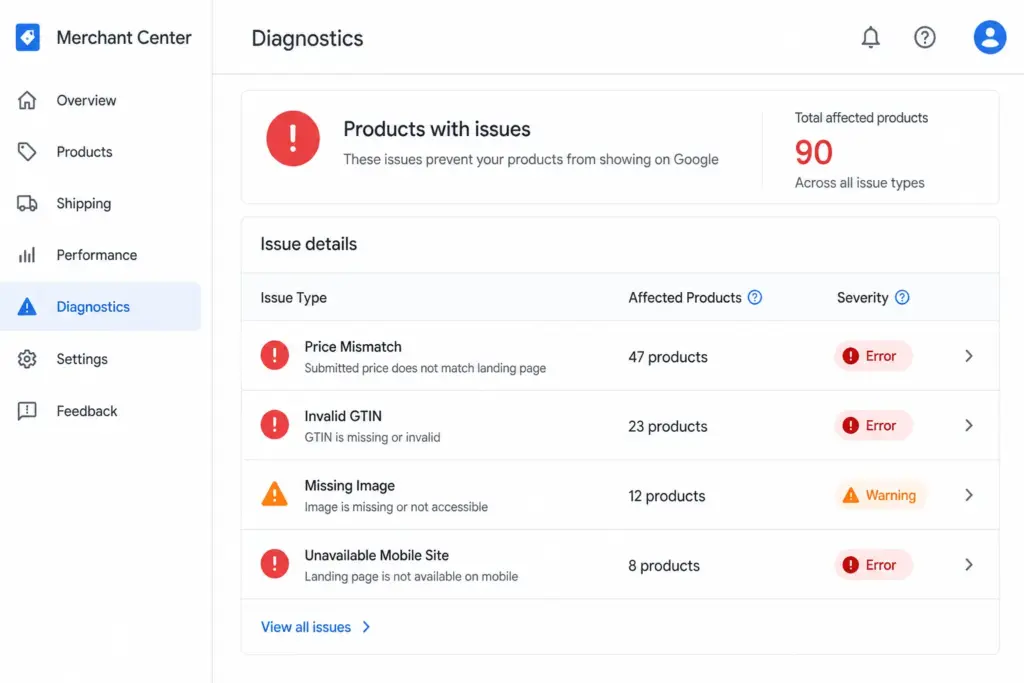
Merchant Center product issues overview showing disapproved products grouped by issue type
Step 1: Find your disapprovals in the Needs attention tab
Product-level issues live in Products → Needs attention. Older guides, including earlier versions of this one, call this area Diagnostics; in the current Merchant Center the product issues are in the Needs attention tab. Account-level problems (policy warnings or suspensions) appear there too, under View setup and policy issues.
Each product has one of five statuses ( Google: product visibility and status ):
- Under review — Google is checking the product. This can take up to 3–5 business days for Shopping ads and longer for other features.
- Processing — your latest data is being applied, which takes up to 15 minutes.
- Approved — the product is showing on Google.
- Limited — the product shows, but only in some cases or countries. Open Needs attention to see why.
- Not approved — the product cannot show because of a policy or data-quality issue. These cost you impressions and sales until fixed, so fix them first.
Before you fix anything, group the issues by type. If one issue affects 800 products, that is a data-source problem, and one fix in the source clears all of them. For attribute requirements, keep the Google Shopping Feed Guide open alongside.
Step 2: Choose the right way to fix it
- A few products: open the product in Needs attention and edit the attribute.
- Many products: download the affected-products list as a CSV, correct the values in your data source (feed file, store plugin or PIM), and re-upload or let your schedule fetch it. Google describes this route for price, availability and landing-page issues.
- A missing attribute on many products: use a supplemental data source or attribute rules to add it without rebuilding the whole feed.
- Automatic help: the Automations tab can update price, sale price, availability, condition and fix minor image issues from your website data. Google positions this for sporadic problems; it does not replace regular feed updates, and it can fail if a price or stock level changes more than once a day ( Google: automatic updates ).
The most common disapproval reasons and how to fix each
If your message is not covered here, look it up in the Merchant Center Disapproval Diagnostic , which lists more issues with the cause and the fix.
1. Mismatched price
What it means: Googlebot compares the price in your data source with the price on your landing page or in its structured data. Google’s guidance is that prices in the page HTML need to match what you uploaded exactly ( Google: mismatched product price ).
Common causes: a delay between a website price change and the next feed update; wrong structured data on the product page; prices that only appear after JavaScript runs; a sale_price_effective_date with the wrong date or timezone; a minimum order quantity so the displayed price is not the unit price; and tax handling. For the US and Canada the price must exclude tax, while in most other countries it must include VAT or GST (
Google: product data specification
). A feed that follows the wrong rule for your country mismatches on every product.
Fix: make the data source price equal the price shown on the page, in the same currency, then request a website check. Google says reviewing your website can take up to 12 hours. For promotions, send sale_price with sale_price_effective_date rather than overwriting price, so the sale ends on its own. If prices change often, schedule frequent uploads or use the Merchant API rather than manual files.
2. Invalid or missing GTIN
What it means: the GTIN has the wrong length or check digit, is a placeholder, or conflicts with the brand. Google asks for either an accurate GTIN or both brand and MPN. Products with identification problems typically get limited performance, and an invalid GTIN can lead to disapproval.
Fix: validate every GTIN with the
GTIN Validator
before upload, and never invent one. If a product genuinely has no GTIN (custom or handmade items, for example), provide brand and MPN and set identifier_exists to no where brand, GTIN or MPN do not exist. Details are in the
GTIN compliance guide
and
how GTIN check digits work
.
3. Image problems (too small, text on image, low quality)
What it means: the image breaks Google’s image rules. Disallowed items include promotional overlays, text callouts, prices, watermarks, borders, placeholder graphics and single-colour squares ( Google: image_link ).
Size rules (read this one carefully): until 31 January 2027, Google still accepts images of at least 100×100 pixels, or 250×250 for apparel. After that date the minimum becomes 500×500 pixels for all products, so any image under that will start failing. Google recommends around 1500×1500 pixels or more for the best result in every listing format. Files must be under 16 MB and 64 megapixels. If you are already below 500 pixels, fix it now rather than waiting for the deadline.
Fix: use a clean image of the actual product on the main image_link. Lifestyle shots can go in additional_image_link. You can also switch on automatic image improvements in the Automations tab, which can fix minor issues such as promotional overlays.
4. Product page unavailable (landing page not working)
What it means: Google cannot load the page in your link. Causes Google lists: 404 errors, more than two redirects, 5xx server errors, DNS problems, an unreachable robots.txt, and invalid URL protocols (
Google: product page unavailable
). Pages that need a login, or that redirect to a different product, fail for the same reason.
Fix: make sure each link returns a 200, goes to the specific product (not a category or the homepage), and is not blocked for Google’s crawlers. Test with the URL Inspection tool in Search Console. The standalone Mobile-Friendly Test that older guides recommend has been retired by Google, so do not rely on it. Remove products you no longer sell from the feed. Google says products typically come back within a couple of days once the pages are accessible.
5. Mismatched availability or condition
What it means: the feed says in_stock but the page says out of stock, or the feed says new while the page shows refurbished. Google’s most common cause is timing between your website and your data source (
Google: mismatched availability
).
Fix: schedule feed updates to follow your store’s stock updates, and for fast-moving stock use the Merchant API or automatic updates instead of manual uploads. Re-check can take up to 12 hours.
6. Missing required attributes (including apparel attributes)
What it means: a required field is empty or wrongly formatted. Every product needs the ones below ( Google: product data specification ).
| Attribute | Requirement |
|---|---|
id | Unique per product, up to 50 characters |
title | Up to 150 characters |
description | Up to 5,000 characters |
link | Landing page URL starting with http or https |
image_link | Main product image (see the size rules above) |
price | Amount and ISO 4217 currency; tax rules differ by country |
availability | in_stock, out_of_stock, preorder or backorder |
brand | Required for new products except movies, books and music |
age_group, gender, color, size | Required for apparel targeting Brazil, France, Germany, Japan, the UK and the US |
item_group_id | Required for variants in most countries |
availability_date | Required for preorder and backorder items |
Fix: run the feed through the Google Shopping Feed Audit or the Product Data Completeness Checker to find empty fields before Google does. For a long checklist, see the Google Shopping feed audit checklist .
7. Wrong Google product category and other data-quality violations
What it means: Google lists incorrect product categories, excessive capitalisation in titles, and conflicting GTIN or brand values among its product data-quality violations ( Google: product data quality violations ). These can start as disapprovals and escalate to an account warning if left unfixed.
Fix: google_product_category is recommended rather than required, and you can submit either the numeric ID or the full path, not both. If you set it, use the most specific category from Google’s taxonomy and keep titles in normal sentence or title case. Our
Google product category guide
shows how to find the right ID.
8. Policy: prohibited and restricted content
What it means: Google splits policy into prohibited content, which cannot be listed at all (for example counterfeit goods, dangerous products such as weapons, ammunition and tobacco, and inappropriate content), and restricted content, which can be listed with limitations (adult-oriented content, alcohol, gambling and healthcare products such as medicines and supplements). Restricted items may not show in every location and can need extra requirements ( Google: Shopping ads policies ).
Fix: read the specific policy page named in the issue. If the item is prohibited, remove it from the feed: it cannot be fixed. If it is restricted, follow the requirements for that category and country, and do not assume it will be eligible everywhere.
9. Tax, shipping and account-level issues
What it means: missing shipping or tax settings for a target country, or a mismatch between the shipping you declared and what checkout shows. Problems with your website, business information or policies are account-level: they show as a warning, and if unresolved, a suspension that disables all products ( Google: warnings and suspensions ).
Fix: configure shipping and tax for every country you target and make delivery times match checkout. For an account warning, fix what the notification names, then use the review request.
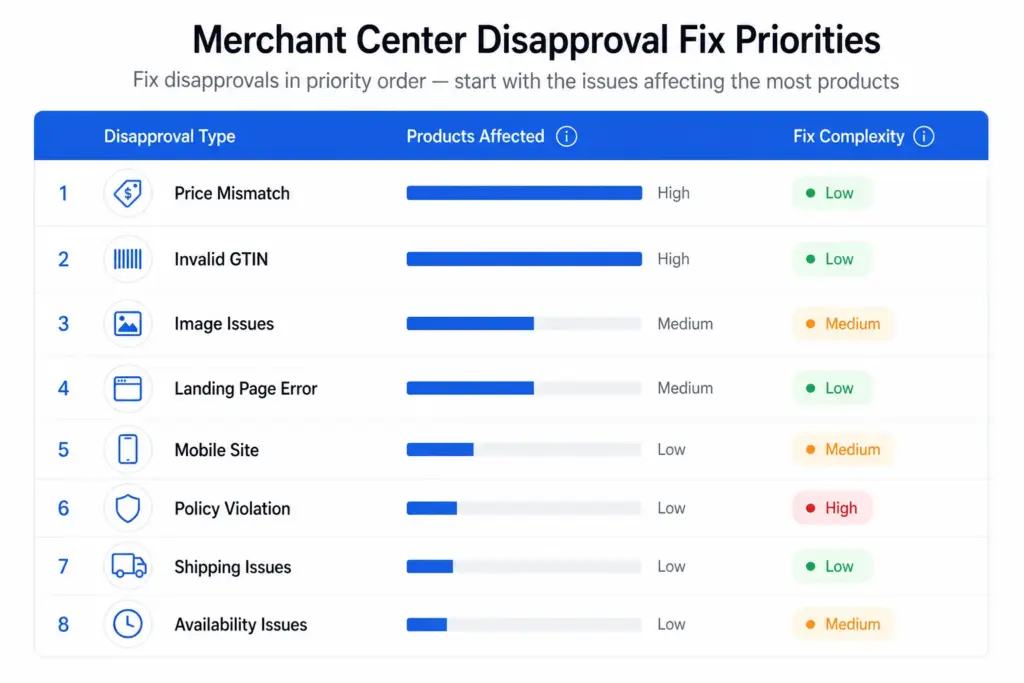
Checklist of fixes for disapproved products in Google Merchant Center
If Merchant Center says your account is under review
A message such as “Google is reviewing your Merchant Center account. Your products will be re-reviewed once your account is approved” is an account-level review, not a product disapproval. It is not something you fix product by product.
- Complete anything Google is asking for first (identity verification, website contact details, clear return and shipping policies).
- Make sure at least one product is in your data source and that your product data matches your website.
- Request the review once, after fixing. Google says reviews take up to 7 business days and sends an email when it starts and finishes.
- Do not file repeated review requests. You may have only one chance to disagree with an issue, and two unsuccessful reviews trigger a cool-down period during which the review button is disabled ( Google: request a review ).
How to request a review or re-check
- Fix the cause in your data source first.
- Go to Products → Needs attention.
- For a product issue, select Fix on the product, then Request website check, or I disagree with the issue if you believe Google is wrong.
- For an account issue, select View setup and policy issues, then I fixed the issue or I disagree with the issue, and Request review.
How to prevent disapprovals from recurring
- Match update frequency to how often prices and stock change. Daily is a floor for most stores; frequent changes call for the Merchant API or a tighter schedule.
- Validate before you upload. Run GTINs through the GTIN Validator , and check the feed with the Feed Audit . This is the cheapest way to avoid disapprovals: catching an error before submission means the product never goes dark.
- Use sale_price for promotions with
sale_price_effective_date, in the correct timezone, so prices revert automatically. - Keep Automations on as a safety net, not a substitute for fresh data.
- Turn on product data alerts. In Settings → General → Personal preferences → Email preferences, tick the product data alerts ( Google: email preferences ).
- Review Needs attention weekly. New issues appear when Google re-crawls your pages and finds differences.
- Test image and price changes before a redesign or theme update goes live; site changes are a common trigger for sudden, large disapproval batches.
For catalogues where the same errors keep returning, the cause is almost always upstream: inconsistent pricing, stale stock status, or identifiers that were never validated in the product data itself. Fixing these once at the source is what a PIM is for. See how product data quality affects Google Shopping ROAS , or try the Feed Generator and the LynkPIM free plan . For the wider structure, see our ecommerce product taxonomy and category mapping guide .
Frequently asked questions
How long does it take for products to be approved again after I fix them?
It depends on the type of fix. Google says processing a data update takes up to 15 minutes, a website re-check for price, availability or landing-page issues can take up to 12 hours, and a new product review can take 3–5 business days for Shopping ads. Account-level reviews can take up to 7 business days. Treat these as Google’s stated upper bounds, not guarantees.
What is the difference between a disapproved product and a product with limited performance?
A disapproved product has the status “Not approved” and is not shown on Google at all. A product with limited performance is still shown, but only in some cases or countries. Missing identifiers such as a GTIN or MPN are a typical cause of limited performance. Fix the not approved products first.
Why are so many of my products disapproved at the same time?
A large batch of disapprovals usually has one shared cause rather than hundreds of separate ones: a feed rule or template that changed, a site redesign that altered prices or structured data, a tax setting that now differs between feed and page, or landing pages that started returning errors. Group the issues in the Needs attention tab, look at the biggest group first and fix it in the data source, not product by product.
Can I request a review after fixing a disapproval?
Yes. For a product issue, open Products > Needs attention, choose Fix on the product, and select Request website check (or I disagree with the issue if you believe it is wrong). For account-level issues, use View setup and policy issues. Fix the cause first: Google limits how many times you can dispute an issue, and after repeated unsuccessful reviews a cool-down period disables the review button.
Why does Merchant Center say my account is under review?
An account review means Google is checking your account against its policies. Products in the account are re-reviewed once the account is approved. Do not keep changing settings or resubmitting while you wait: reviews can take up to 7 business days, and you receive an email when the review starts and when it finishes. If you were asked to fix something first (for example identity verification or website contact details), complete that before requesting review.
Which disapproval reason is the most common?
Google does not publish a ranking. In practice, mismatches between the feed and the landing page (price and availability), missing or invalid product identifiers, and image problems are the issues merchants most often report, and all three are preventable with frequent feed updates and validation before upload. Your own Needs attention tab is the only data that matters for your store.
Sources
Checked on 4 October 2026 against these Google Merchant Center Help pages:
- Request a review of your issues
- Check product visibility and status
- How to fix: Mismatched product price
- How to fix: Mismatched product availability
- How to fix: Product page unavailable
- Image link [image_link]
- Product data specification
- Fixing disapprovals for product data quality violations
- Fixing warnings and account suspensions for policy violations
- Shopping ads policies
- Allow Merchant Center to update product information automatically
- Change your Merchant Center email preferences