Building a product catalog correctly from the start prevents years of cleanup work later. A catalog built without a taxonomy, without consistent attribute definitions, and without SKU conventions accumulates inconsistency with every product added — until fixing it takes longer than rebuilding it from scratch would have. This guide covers how to build it right the first time.
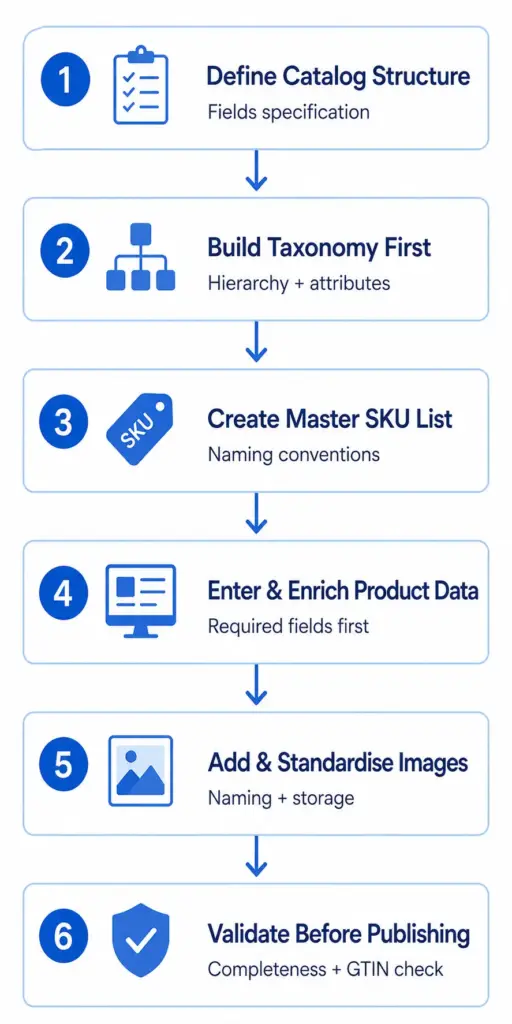
Step 1: Define Your Catalog Structure Before Adding Any Products
The most common catalog building mistake is starting with products before defining the structure those products will sit in. Decide these three things first:
- Universal fields — fields that every product record must have regardless of category: SKU, Product Name, Description, Price, Category, Brand, GTIN, Primary Image URL, Availability
- Category-specific fields — attributes that apply only within specific subcategories: Colour, Size for apparel; Processor, RAM for electronics; Width, Height, Depth for furniture
- Channel-specific fields — content generated specifically for each sales channel: Google Shopping Title, Amazon Bullet Points, Facebook Description
Document this as a field specification. It becomes your data standard — the reference every team member uses when entering product data.
Step 2: Build Your Taxonomy Before Your Products
Your product taxonomy — the category hierarchy — must be designed before any products are entered. Products cannot be correctly catalogued without a taxonomy to put them in. A product entered before the taxonomy exists will be assigned to a category that may not match where it should go once the proper structure is in place.
Design your taxonomy to at least three levels (Department → Category → Subcategory), define the attribute set for each subcategory, and map every subcategory to its Google product category ID. The full process is covered in How to Build a Product Taxonomy From Scratch . Use the free Product Taxonomy Template as your starting point.
Step 3: Establish SKU Conventions Before Creating Records
SKUs are permanent identifiers. Changing them after products are live in your platform, in customer orders, and in channel feeds is a significant operational task. Establish your SKU naming convention before creating any product records.
Common conventions: BRAND-CATEGORY-VARIANT (e.g. COL-RJ-M8NVY for Columbia Rain Jacket Men Size 8 Navy), or a simpler numeric sequence. What matters is consistency — the same format for every SKU, with clear rules for how variants relate to parent SKUs.
Step 4: Enter Required Attributes Before Optional Ones
When entering product data, complete all required attributes across all products before moving to optional attributes. A catalog that is 100% complete on required fields and 0% complete on optional fields is more useful than one that is 60% complete on everything. Required completeness enables publishing and channel submission. Optional completeness improves performance over time.
Step 5: Image Standards From Day One
Establish image standards at the start: naming conventions, minimum dimensions (800×800px for Google Shopping), file format (JPEG for product shots), folder structure in your DAM or storage system. Retroactively standardising thousands of image files is one of the most time-consuming catalog cleanup tasks — avoid it by setting standards before the first image is added.
Step 6: Validate Before Publishing
Before any product goes live, run these checks:
- Completeness check — all required fields populated for every product
- GTIN validation — all product identifiers are valid format
- Duplicate SKU check — no two products share the same identifier
- Category assignment — every product is in the correct subcategory
- Image URL validation — all image links load correctly
The PIM Readiness Score assesses your current setup against these dimensions. Download the free catalog template at lynkpim.app — pre-structured with the field definitions, taxonomy, and validation rules to start from rather than a blank spreadsheet. For what to do once your catalog starts growing, see How to Manage 1,000+ SKUs Without Losing Your Mind .
nNext steps: a LynkPIM demo .
nnFrequently Asked Questions
What fields should every product catalog include?
Every product record needs at minimum: SKU, Product Name, Description, Price, Category, Brand, GTIN or identifier_exists = FALSE, Primary Image URL, and Availability status. Category-specific attributes (Colour, Size, Material etc.) are added per subcategory based on your taxonomy attribute sets. Channel-specific content fields (Google Shopping Title, Amazon Bullet Points) add value once basic data is complete.
Should I build my product catalog in a spreadsheet or a PIM?
Spreadsheets work for catalogs under approximately 200 SKUs with a single channel and a single person managing data. For anything larger or multi-channel, a dedicated PIM system is necessary to maintain data quality and prevent version control problems. Start with a well-structured spreadsheet template and migrate to a PIM when the spreadsheet starts breaking — which typically happens around 500 SKUs or when you add a second channel.
Product catalog management series
- Product catalog management: the complete guide : Start here: process, roles, systems, metrics and a 90-day plan.
- What is product catalog management? : A short introduction and definition.
- How to build a product catalog (you are here): Structure, taxonomy, SKUs, attributes and images in the right order.
- How to manage 1,000+ SKUs : The five systems you need as the catalog grows.
- Duplicate SKUs : How to find them and stop them coming back.